

7 WordPress AI Search Mistakes That Cost You Citations
WordPress AI search mistakes quietly suppress your AI citation rate. Here are the seven most common ones and how to fix each.
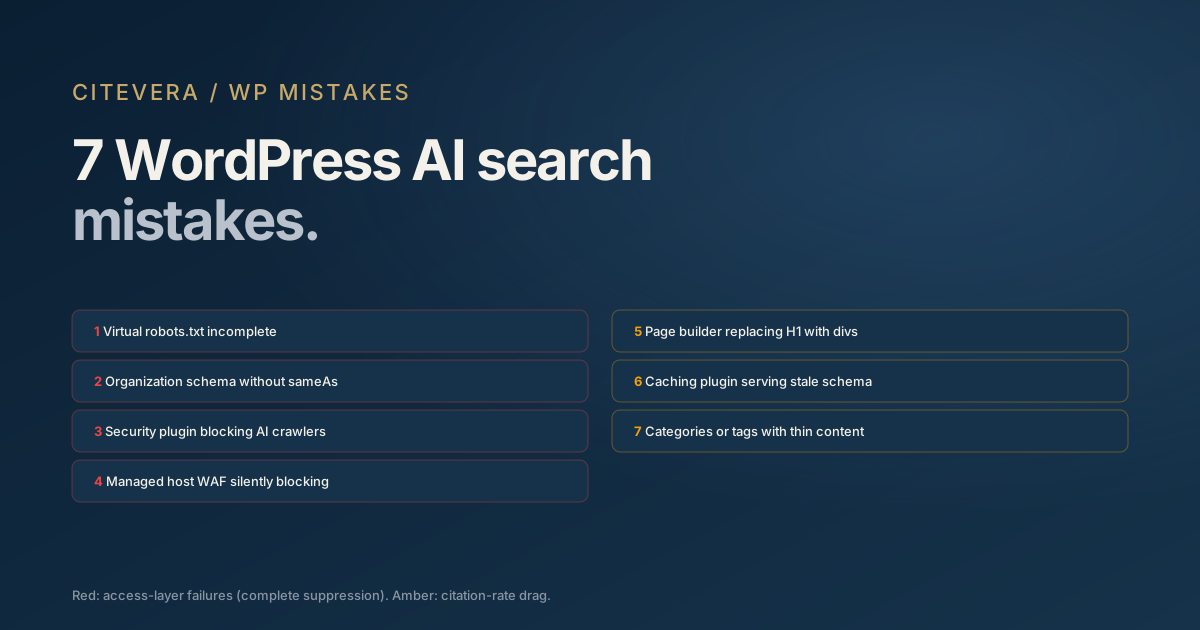
Most WordPress sites with weak AI citation performance are not missing a silver bullet; they are leaking signal through a handful of specific, recurring mistakes. This post covers the seven WordPress AI search mistakes that show up most often in Citevera audits and exactly how to fix each one.
Each mistake produces the same symptom: your AEO checklist looks good in plugin UIs, but the actual AI crawler activity and citation rate is lower than it should be. Fixing them is usually fast, once you know what to look for.
Mistake 1: Virtual robots.txt incomplete
WordPress generates a virtual robots.txt by default. The default only contains rules for wp-admin and wp-includes. No AI crawler allow rules are in place.
Symptom: https://yourdomain.com/robots.txt shows only Disallow rules for admin paths. No mention of GPTBot, ClaudeBot, or similar.
Fix: either drop a physical robots.txt at your site root with the full robots.txt AI crawlers block, or use a plugin (Yoast, RankMath, or the Citevera WordPress plugin) that appends the AI crawler rules to the virtual file.
Time to fix: 5 minutes via physical file upload. 2 minutes via plugin.
Mistake 2: Organization schema without sameAs
Most modern WordPress SEO plugins emit Organization JSON-LD automatically, but almost all of them leave the sameAs array empty until you manually populate it in plugin settings.
Symptom: view source on your homepage. Find the Organization block. sameAs is either absent, empty array, or contains only one or two URLs.
Fix: populate sameAs with 4 to 8 external profiles: LinkedIn company page, Crunchbase, Wikidata (if applicable), G2 / Capterra / Trustpilot (if applicable), Google Business Profile URL, and any industry-specific platforms. The exact location in plugin settings:
- Yoast: SEO > Settings > Site representation and social profiles
- RankMath: General Settings > Social Meta
- SEOPress: SEO > Titles & Metas > Schema
Time to fix: 15 minutes once you have the external profile URLs compiled.
Our schema.org for AI search entity graph blueprint covers why sameAs carries so much load.
Mistake 3: Security plugin blocking AI crawlers
Wordfence, Sucuri, and iThemes Security all ship default rules that can challenge or block unfamiliar automation user agents. GPTBot and PerplexityBot get caught by these rules silently.
Symptom: server logs show zero or near-zero GPTBot and PerplexityBot fetches despite your robots.txt being correct.
Fix: in your security plugin settings, explicitly allowlist GPTBot, OAI-SearchBot, ChatGPT-User, ClaudeBot, PerplexityBot, Google-Extended, and Applebot-Extended user agents. Each plugin has its own allowlist UI; the terminology varies. Look for "known bots," "user agent whitelist," or "rate limit exceptions."
Time to fix: 10 minutes.
Mistake 4: Managed host WAF blocking crawlers
Managed WordPress hosts (WP Engine, Kinsta, Flywheel, SiteGround) often run a WAF at the platform layer that is invisible from WordPress admin. Default WAF rules on some managed hosts block AI crawler user agents.
Symptom: after fixing robots.txt and disabling any security plugin blocks, server logs still show no AI crawler activity.
Fix: contact your host's support and ask them to allowlist GPTBot, ClaudeBot, PerplexityBot, Google-Extended, and Applebot-Extended at the WAF layer. Most managed hosts will do this on request. Some require a support ticket; some have a self-service firewall rules panel.
Time to fix: 30 to 60 minutes of elapsed time (including waiting for host support response).
Mistake 5: Page builder replacing H1 with styled divs
Page builders (Elementor, Divi, Beaver Builder, Oxygen) give content authors pixel-level control, which sometimes produces hero sections built from generic <div> containers instead of semantic <h1> tags. AI crawlers cannot identify the page's primary heading without an actual H1.
Symptom: view source on page-builder pages. Count H1 tags. Zero H1s means the crawler sees no heading. Multiple H1s is also a problem (only one should be present).
Fix: edit the page-builder template. Most page builders have a heading widget that lets you select H1, H2, etc. Change the hero title from a generic "Heading" or "Text" element to a proper H1. Confirm by viewing source.
Time to fix: 5 minutes per page. Multiply by the number of affected templates.
Mistake 6: Caching plugin serving stale schema
WP Rocket, W3 Total Cache, and WP Super Cache all cache full page HTML including the schema JSON-LD. When you update your Organization schema or add new FAQ schema, the cache serves the old version until it expires.
Symptom: you updated schema in a plugin, viewed source on the homepage, and still see the old schema. Or the update appears in one browser but not another.
Fix: after any schema change, purge the cache. WP Rocket has a "Clear cache" button. W3 Total Cache requires empty-all. Some hosts also cache at the CDN layer (Cloudflare especially) and need a separate CDN cache purge.
Time to fix: 2 minutes per schema update, as a routine step.
Mistake 7: Categories or tags with thin content
Content depth matters for AI citation rates. Sites with 50+ posts in a topic cluster saw a 33x AI crawler visit gap per Duda 2026 (a single-platform, correlational dataset). On WordPress, topical depth is measured per category or tag. If your categories are all under 10 posts, you are in the "thin" content-depth bucket regardless of total post count.
Symptom: WP admin Posts > Categories shows each category under 10 posts. Or your site has dozens of categories with 2 to 5 posts each, with no single category reaching meaningful depth.
Fix: consolidate categories. Pick your 3 to 5 most important topics and commit to 50+ posts in each over the next several quarters. This is editorial work, not technical work. The 33x content rule breakdown covers the mechanics.
Time to fix: consolidation is a one-day migration. Building 50+ posts per category is 12 to 18 months of editorial work at a weekly cadence.
How to audit these seven in 30 minutes
A practical workflow to run through all seven on your own WordPress site.
- 0:00-0:03: fetch robots.txt, confirm AI crawler rules
- 0:03-0:08: view source on homepage, verify Organization schema + sameAs population
- 0:08-0:13: check security plugin allowlist for AI crawler user agents
- 0:13-0:20: check managed host WAF (may require support ticket, start it now)
- 0:20-0:23: view source on a page-builder page, count H1 tags
- 0:23-0:25: verify caching plugin is configured to refresh on schema changes
- 0:25-0:30: export category + post count list from WP admin, identify thin categories
After the audit, sort the fixes by impact. Mistakes 1, 2, 3, and 4 are usually the top priorities because they cause complete or near-complete citation suppression. Mistakes 5, 6, 7 are incremental.
Beyond the seven
These seven are the most common WordPress AI search mistakes, but not the only ones. Longer-tail issues include multisite configuration drift, staging environments accidentally indexed, AMP variants emitting incomplete schema, and theme updates silently breaking schema output.
For the complete WordPress AI search optimization framework, see the WordPress AI search optimization guide.
Key takeaways
- Seven specific WordPress AI search mistakes cause most of the citation-rate gap: virtual robots.txt, empty sameAs, security plugin blocks, host WAF blocks, page-builder H1 replacement, caching interference, and thin topical categories.
- The first four (access-layer) cause near-complete suppression. Fix those first.
- Most fixes take 5 to 30 minutes each. Thin category depth is the exception; it requires editorial work over quarters.
- A 30-minute audit covers all seven. Re-audit quarterly.
What to do next
Run a free audit at scan.citevera.com to see which of the seven WordPress AI search mistakes your site is making. The report flags each one by name and provides a WordPress-specific fix recipe.
The Citevera WordPress plugin auto-applies fixes for mistakes 1, 2, 6 (schema purging) in-admin.