

WordPress AEO setup: the plugin-by-plugin playbook
WordPress is the world's most common CMS and has specific strengths and gaps for AEO. Here is the minimum-viable plugin stack for AI citation readiness, the configuration settings that actually matter, and the three WP-specific traps that cost sites the most.
Why a WordPress-specific post
WordPress runs roughly 40 percent of the web. Most AEO advice is CMS-neutral, which is correct on the fundamentals but abstracts away the practical question: which plugin does what, which settings are on by default, and which are the traps. This post is that layer for WordPress specifically.
The plugin list is deliberately short. We see sites that try to run 15 SEO and schema plugins at once and end up with conflicting schema output, duplicate meta tags, and slow admin screens. Three or four well-configured plugins do the AEO job better than fifteen.
The minimum stack
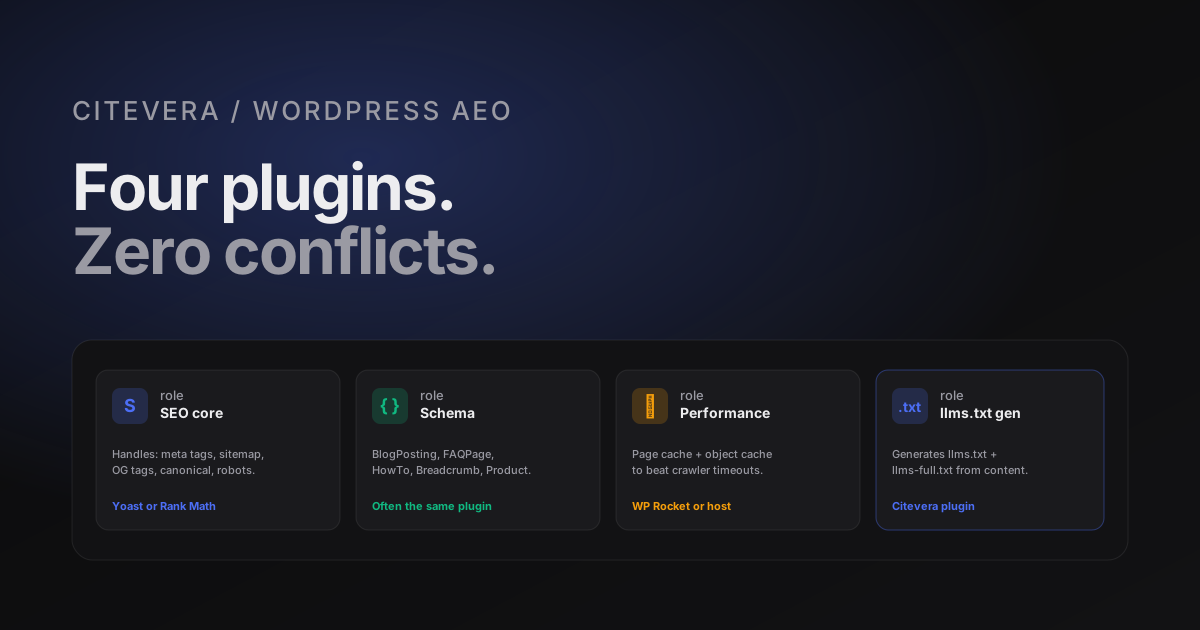
Four plugins cover the AEO fundamentals on most WordPress sites. You can swap equivalents for each but do not skip any category.
1. An SEO core plugin
Yoast SEO, Rank Math, or SEOPress. Any mature SEO plugin handles the baseline: meta titles and descriptions, Open Graph tags, Twitter Card tags, canonical URLs, XML sitemaps, robots.txt editing. Pick one, configure it well, leave it alone.
Configuration settings that matter for AEO specifically:
- Enable XML sitemap generation. Most SEO plugins do this by default. Confirm the sitemap URL resolves and includes all post types you want indexed.
- Enable breadcrumb output. Emit BreadcrumbList schema on posts and pages. Yoast and Rank Math both support this natively; enable it site-wide.
- Set a default social image. Open Graph and Twitter images for posts that do not have a custom hero.
- Turn on author archives only if authors are real humans. See the author-attribution section below.
2. A schema-markup plugin (if the SEO core does not cover it)
Rank Math includes schema output at a good depth; Yoast's schema is fine for basic types but weaker on FAQPage and HowTo. If you are on Yoast, add Schema Pro or a dedicated schema plugin for deeper types. If you are on Rank Math, you usually do not need a separate schema plugin.
What this plugin should emit:
- BlogPosting / Article on every post.
- BreadcrumbList everywhere.
- FAQPage on posts that contain FAQ blocks.
- HowTo on tutorial posts.
- Organization on the homepage.
- Product + Offer on pricing pages (if the site sells something).
Configuration: emit schema only on pages that actually contain the structure it describes. Most plugins default to this but some push too aggressively.
3. A performance and cache plugin
WP Rocket, W3 Total Cache, or a host-level solution. Performance matters less for AEO than for SEO but still matters at the floor level - slow time-to-first-byte causes crawler timeouts.
Configuration for AEO:
- Object caching enabled. Speeds up page generation.
- Page caching enabled. Delivers cached HTML to crawlers.
- No JavaScript-based critical-path rendering. Some performance plugins inject JS that defers content rendering. Disable those features; they hurt crawler visibility of content.
4. An llms.txt generator
The emerging category. A few plugins have appeared in 2025 and 2026. The Citevera plugin generates llms.txt and llms-full.txt from your existing content. Others include dedicated llms.txt plugins with different source behavior. Pick one.
Configuration:
- Include your core pages and top posts. Pricing, product pages, top 10 blog posts by traffic.
- Set the regeneration schedule to weekly. More often adds overhead; less often lets content drift.
- Cap at 100KB for llms-full.txt. Refuse to ship over the cap; prioritize instead.
The three WordPress-specific traps
1. Duplicate schema output from competing plugins
The most common AEO problem on WordPress sites we audit is two or three plugins each emitting their own BlogPosting JSON-LD on the same page, with slightly different field values. The engine sees duplicate schema with conflicts, gets confused, and treats the whole schema set as unreliable.
The symptom: view source on a post, count the application/ld+json blocks. If you see 2 or 3 BlogPosting blocks on one post, you have the duplicate-schema problem.
The fix: pick one plugin as your schema source of truth. In the others, disable schema output. Most plugins have a setting to disable schema but continue providing their other features. Find the setting in Yoast, Rank Math, SEOPress, or whatever else is fighting for the slot, and turn schema off in all but one.
2. Block editor FAQ output that is invisible to crawlers
Some FAQ blocks in Gutenberg render the questions server-side but load the answers via JavaScript when the accordion opens. The FAQPage schema might claim 6 Q-A pairs but the rendered HTML only shows the 6 questions and no answers. Engines detect the mismatch and the schema gets discounted.
The fix: use an FAQ block or plugin that server-renders both questions and answers inside <details> or plain paragraphs. If you must use a JS-driven accordion, confirm the answers are present in the DOM on initial render (not loaded on-click).
Test this by viewing source on a post with an FAQ block. Search for your answer text. If it is not there, it is not there for crawlers.
3. Author archives with no real authors
WordPress auto-creates an author archive page for every user who publishes content. On many sites, 80 percent of those users are the developer account, an import bot, or a long-departed employee with no actual writing.
The problem: every BlogPosting points at an author page that is either empty, a 404, or contains 3 posts and no bio. This is the opposite of what Person schema should demonstrate. Engines read the author entity and find nothing trustworthy.
The fix: consolidate content under 1 to 5 real named humans with real author pages. Bulk re-attribute old posts if needed. Delete or redirect the archive pages of accounts that are not meant to be public. Fill the remaining author pages with a 2-paragraph bio, a photo, and sameAs links to LinkedIn and other profiles.
The config-check script
If you run a WordPress site, this is the 15-minute config check you should run after any major plugin update or theme change.
1. View source on your homepage. Count JSON-LD blocks. Confirm you see exactly one Organization, one WebSite, and optionally BreadcrumbList. 2. View source on a blog post. Confirm exactly one BlogPosting, one BreadcrumbList, optionally one FAQPage if the post has an FAQ. No duplicates. 3. Fetch /robots.txt. Confirm it exists, includes AI crawler allows, and has a Sitemap directive. 4. Fetch /sitemap.xml (or whatever your SEO plugin emits). Confirm it resolves and lists your current posts. 5. Fetch /llms.txt. Confirm it exists and reflects your current core pages. 6. Spot-check an FAQ post: view source and confirm the question AND answer text are present.
If any step fails, that is your top fix.
The migration path from broken to good
For a WordPress site that has accumulated 5+ years of plugin experiments and is now a mess, here is the 3-week migration path we have seen work.
Week 1: Audit and plan
Run a Citevera audit to get the baseline score. Run the config check above to find what is broken. Pick your go-forward SEO core plugin (usually Rank Math or Yoast). Pick your schema source (usually the same plugin, if it covers your types well). Identify the plugins to remove and the features to disable.
Week 2: Plugin cleanup
Disable schema output in every plugin except your chosen source. Disable duplicate sitemap generation. Delete any plugin that has not been used in 6+ months. Update remaining plugins to current versions. Clear all caches. Re-audit and confirm schema duplicates are gone.
Week 3: Content pass
Run the direct-answer lede and FAQ block improvements across your top 10 posts. Update author attribution site-wide to real humans. Publish llms.txt and llms-full.txt. Re-audit and confirm the lift.
Most sites doing this migration see 15 to 25 points of AEO score improvement by the end of week 3. It is not magic; it is just closing the gap between "plugins running" and "plugins correctly configured".
Run a free audit on your WordPress site to see the specific gaps
How Citevera audits WordPress sites
The audit is CMS-neutral but picks up WordPress-specific patterns when they appear. Duplicate schema from multiple plugins, author archives with no real authors, block-editor FAQ blocks rendered server-side vs client-side - all show up in the audit output with specific flags. The fix recommendations reference plugin settings where relevant, which makes them actionable even for non-technical site owners.
WordPress sites that go through one audit cycle typically close most of the gap within a single sprint. The plugin-based architecture helps here: most of the fixes are settings changes, not code changes.
Frequently asked questions about WordPress AEO
Do I need a dedicated FAQ plugin?
Usually no. The Gutenberg FAQ block (or a custom block with server-rendered output) combined with your schema plugin handles it. Dedicated FAQ plugins sometimes add JavaScript-heavy rendering that hurts extraction.
Is WooCommerce compatible with AEO best practices?
Yes. Product schema generation is built into most SEO plugins and WooCommerce. Configure it once and product pages emit correct Product + Offer schema automatically. The main WooCommerce-specific thing to check: product description fields should be populated with real text, not "add description here" placeholders.
What about headless WordPress?
Headless setups move the schema and SEO responsibility to the front-end framework (Next.js, Astro, etc.). Your plugin stack becomes lighter. The same AEO principles apply; the implementation lives in your front-end templates.
Should I worry about AMP?
No. AMP is a dwindling format and AMP-specific AEO is not a thing. If you have AMP pages, verify they are not the canonical versions and that schema is present on the non-AMP canonical. Then focus on the canonical.